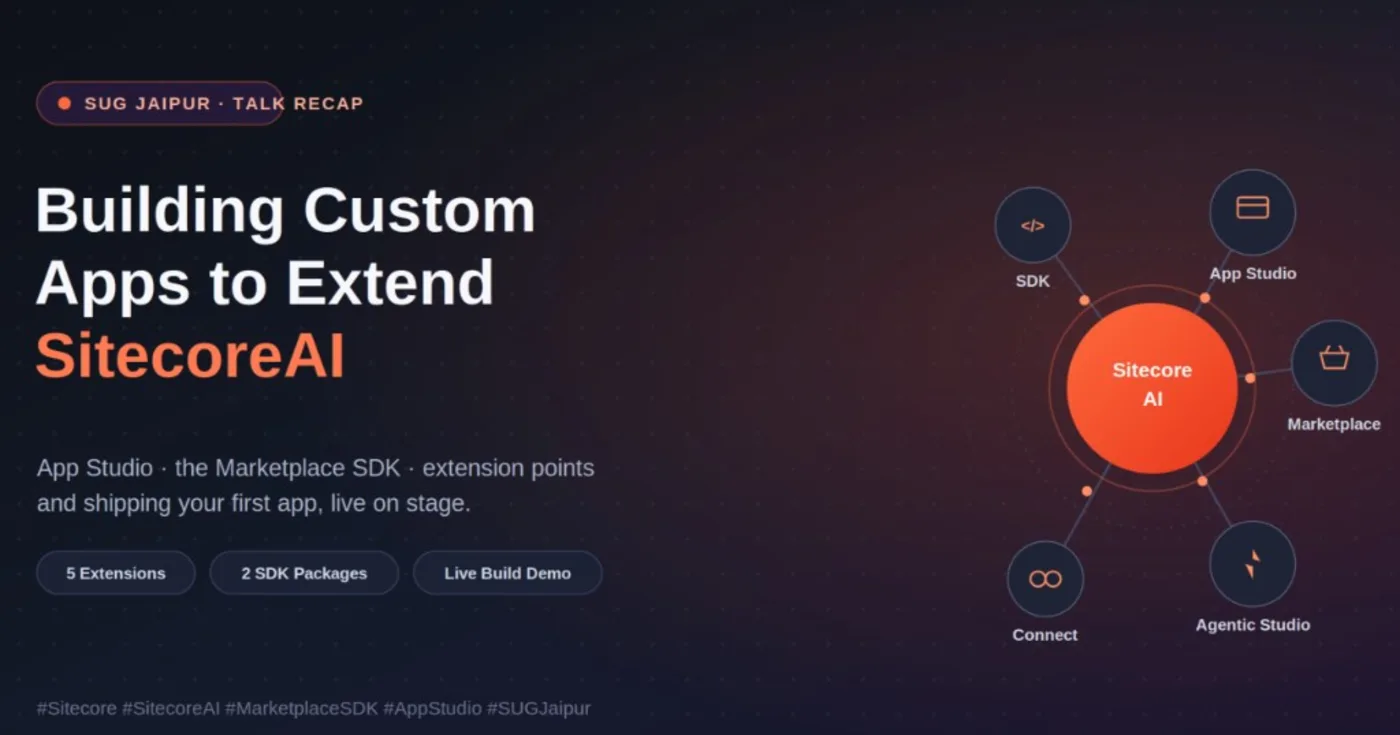
Building Custom Apps to Extend SitecoreAI: My Session at SUG Jaipur
A few days ago I had the privilege of speaking at SUG Jaipur, and I want to start with a genuine thank you to the organizers for building a space where a room full of Sitecore people can connect, learn, and nerd out together for a few hours.
I opened with a simple question to the room: how many of you have used a Marketplace app inside SitecoreAI — and how many of you have actually built one?
The gap between those two answers is the entire reason this session existed. Plenty of us consume Marketplace apps every week without ever realizing how approachable it is to build one ourselves. So instead of a slide-only talk, we made this hands-on: we opened App Studio, configured an app from scratch, activated it, installed it, and watched it come alive inside SitecoreAI — live, in front of everyone.
Here's the full recap for anyone who couldn't make it, or wants a reference to come back to.
Session link: https://www.youtube.com/watch?v=DuEIjvOHqcA
First, let's clear up what "Sitecore Studio" actually means
A lot of people assume Sitecore Studio is one screen they log into. It isn't. It's really an umbrella term for four distinct components, each solving a different problem, each with its own entry point:
1. Agentic Studio
This is your home for AI-driven automation — building custom Agents and Flows directly inside SitecoreAI. Think of a content-review agent that checks every new page against your brand guidelines, or a flow that auto-routes approvals. You won't find a custom UI here — that's not its job. That belongs to App Studio.
2. App Studio
This is where the real engineering happens, and it's where we spent most of our session. App Studio lives inside the Sitecore Cloud Portal, and it's where developers build, configure, and publish custom applications using the Marketplace SDK.
Two roles matter a lot here, and mixing them up is a common source of confusion:
- An Org Admin/Owner can build apps, install or upgrade them into environments, control access, and manually activate an app if it didn't auto-activate.
- A developer without admin rights can usually still build and configure — but will need an admin to actually install and activate.
- An Org User is purely on the consuming end: they use apps that are already installed, from inside the regular SitecoreAI interface.
3. Marketplace
This is the discovery-and-installation layer sitting on top of App Studio — essentially your internal app store. Once an app is built and activated in App Studio, Marketplace is where it gets listed, discovered by others in your org, and installed into a specific SitecoreAI environment.
One detail that trips people up: Marketplace only works with SitecoreAI. If your org is still running classic on-premises XP or XM, this entire framework doesn't apply to those environments.
4. Sitecore Connect
The integration layer — wiring data flows between Sitecore and external systems. Less about a custom UI, more about plumbing. Not typically what you reach for when building a Marketplace app.
Two decisions, and they are NOT the same decision
This is the part I really pushed on during the session, because I've seen even experienced developers conflate them. When you set out to build a Marketplace app, you make two completely independent choices.
Decision 1 — Who can see and use your app?
This is purely about audience.
My honest rule of thumb, and the one I gave the room: start as a Custom App. Go public only once you're genuinely confident it's polished enough for the world. You can always apply to make a Custom App public later — there's no rush to skip that step.
Decision 2 — How is your app built, technically?
This is about architecture — what's actually happening under the hood.
Client-Side App. The entire app runs in the user's browser. No server on your side at all. It calls SitecoreAI APIs directly from the browser and uses the Marketplace SDK's built-in authorization — meaning you don't set up any authentication yourself. Simplest possible starting point.
Full Stack App. Has both a server side and a client side, and can call SitecoreAI APIs from either. It uses custom Auth0 authorization provided by Sitecore, which takes more setup but buys you real flexibility.
When do you actually need Full Stack? The moment your app needs something that categorically cannot live in the browser — a third-party API that requires a secret key, a database, heavier processing, or any server-side logic. I made this point pretty bluntly on stage: if you hardcode a secret into browser-side code, anyone can pop open DevTools and read it in seconds. That's not a hypothetical risk, it's a five-second exercise for anyone curious.
Where does your app actually show up? (Extension Points)
An Extension Point is simply the location inside SitecoreAI where your app appears, chosen when you configure it in App Studio. There are five:
- Standalone — surfaces in the Sitecore Cloud Portal, separate from the editing experience. Great for admin and management tools.
- Full Screen — gets its own page, accessible from the SitecoreAI navigation header. Ideal for dashboards and workboxes — and the one we used for the live demo.
- Page Builder Context Panel — lives in the side panel while someone is actively editing a page. Perfect for real-time feedback or live analytics that react to what the author is doing.
- Page Builder Custom Field — opens as a popup when a specific field is clicked. Great for pulling in third-party data, like a product picker or an external media library.
- Dashboard Widget — a tile on the site dashboard. Good for quick, at-a-glance summaries and stats.
Choosing the right one isn't just an aesthetic choice — it directly shapes how much context and control your app has access to, and how naturally it fits into an editor's or admin's actual workflow.
The Marketplace SDK: the bridge that makes it all real
Without the Marketplace SDK, your app is just a standalone website sitting somewhere, doing nothing useful — it has no way to talk to SitecoreAI at all. The SDK is what turns a regular web app into a real Marketplace app. It's also fully open-source, so nothing about how it talks to Sitecore is a black box — you can read the code and see exactly what's happening.
It ships as two separate npm packages, and you only install what your app actually needs:
Package 1 — @sitecore-marketplace-sdk/client (required, no exceptions)
npm install @sitecore-marketplace-sdk/client
This is the handshake package. It handles the core conversation between your app and SitecoreAI — who this app is, which environment it's running in, which extension point it loaded from, and who the current user is. Without it, SitecoreAI doesn't even know your app exists.
Package 2 — @sitecore-marketplace-sdk/xmc (optional)
npm install @sitecore-marketplace-sdk/xmc
Only needed if your app has to read or write actual Sitecore data — querying pages, reading content, making changes to a site. It handles the queries and mutations against SitecoreAI's APIs. If your app is purely displaying data from an external system and never touches Sitecore content, you can skip this one entirely.
Building a Custom App, step by step
This is the part we actually did live on stage, not just talked through in slides.
Step 1 — Sign in and open App Studio
Head to portal.sitecorecloud.io and sign in. What you see depends on your role: Org Admins get full create/manage access; regular users typically only see apps that are already installed.
Step 2 — Create the app
Click App Studio → Create app → choose Custom → Create. At this point your app exists in App Studio purely as a record. Nobody can see it, nothing is live — it's a placeholder with a name, nothing more.
Step 3 — Configure the app
This is the step where the details matter most, because nothing works until every field is correct:
- Extension Point — for the demo, we chose Full Screen.
- API Access — set the permissions your app actually needs.
- Deployment URL — for local development,
http://localhost:3000. - Logo URL — must be publicly hosted (a CDN, public cloud storage, or public website folder), at least 512 × 512 pixels, in JPG, PNG, or SVG.
Once everything's filled in, click Save.
Step 4 — Activate the app
Click Activate, review the confirmation screen, then Activate again. Here's the detail that confuses almost everyone the first time: activation is not the same as installation. Activating just tells Sitecore the app is fully configured and ready to be installed somewhere — it does not make it appear inside SitecoreAI yet.
Step 5 — Install the app
Go to My Apps, find your newly activated app, click Install, and pick the environment you want it installed into from the list the portal shows you.
Step 6 — Verify the installation
Confirm the app appears where you expect, in the extension point you configured, and behaves correctly for the users who need it.
Thanks again to SUG Jaipur for having me, and to everyone in the room who stuck around for the live build. If you're building — or even just thinking about building — a Marketplace app, I'd genuinely love to hear what you're working on. Drop a comment or reach out.
Session link: https://www.youtube.com/watch?v=DuEIjvOHqcA
#SitecoreAI #SUGJaipur #Altudo #DXP #MarketplaceSDK #AppStudio #SitecoreCommunity
Leave a comment