Complete Guide: Setting Up Page & DataSource Workflows in Sitecore XM Cloud
In this article, I’ll walk you through how to set up page and data source workflows that work together using Datasource Workflow Actions—a powerful feature in XM Cloud that keeps everything in sync.
Now, when you're working with pages AND components (like cards, banners, etc.), each one often lives in its own item (commonly called a data source item). These also need reviewing. Without workflows on data sources, you might publish an approved page... with an outdated or unreviewed component.
Step 1: Plan the Workflow Structure
You’ll need to set up two separate workflows:
-
Page Workflow Used for content pages like Home, About Us, Contact, etc.
-
Datasource Workflow Used for supporting content like cards, testimonials, hero banners, etc.
Why two? To keep things modular and clean. A banner might be used on multiple pages—you want control over it separately.
Step 2: Create Workflow States
Go to: /sitecore/system/Workflows
Create folders under this section for your new workflows:
-
Page Workflow
-
Datasource Workflow
Now inside each, create States. Here’s a common setup:
Minimize image
Edit image
Delete image
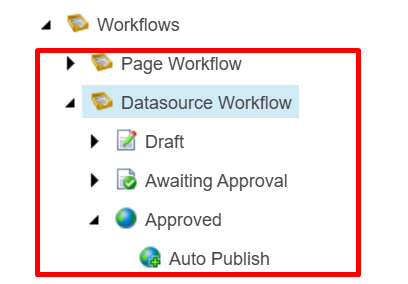
Draft → Awaiting Approval → Approved → Published
Each state should also include Commands (like Submit, Approve, Reject), which are what trigger the move between states.
Step 3: Create the Commands
Under each state, insert:
-
Submit (Draft → Awaiting Approval)
-
Approve (Awaiting Approval → Approved)
-
Reject (Awaiting Approval → Draft)
Minimize image
Edit image
Delete image
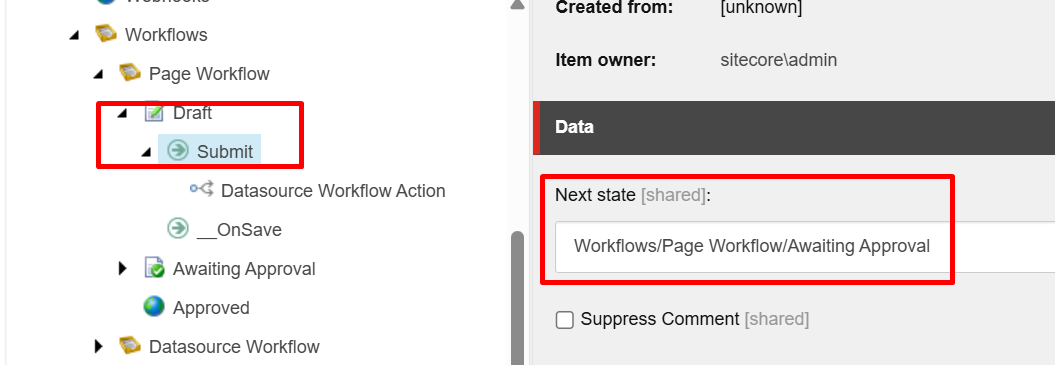
You’ll do this for both workflows (Page and DataSource).
Step 4: Add the DataSource Workflow Action to Page Commands
Let’s say you want your data source items to move in sync with the page.
Example: When a page goes from Draft → Awaiting Approval, you want the card it uses to also move from Draft → Awaiting Approval.
Minimize image
Edit image
Delete image
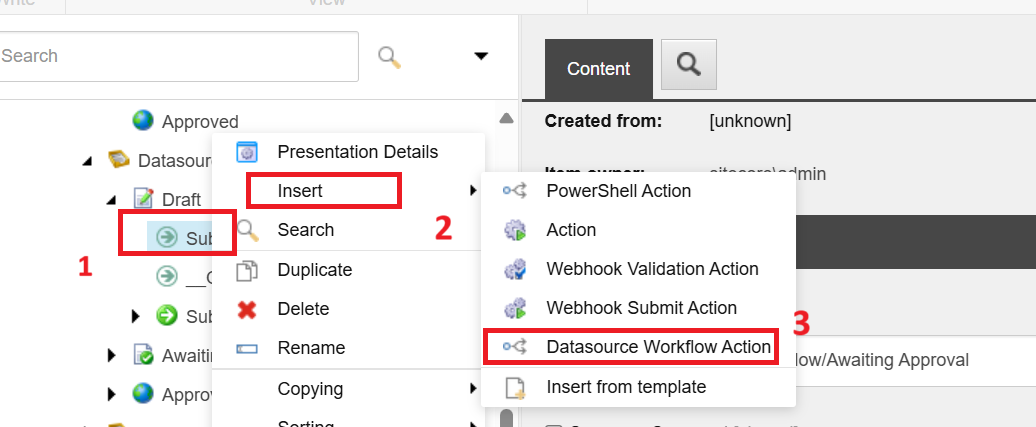
To do this:
-
Go to the Submit command under Page Workflow.
-
Right-click → Insert → Datasource Workflow Action
-
Give it a name, like
Submit Related Components.
This action tells Sitecore, “Also move the associated data sources.”
Step 5: Configure the Datasource Workflow Action
You’ll now see a few fields to fill in:
Minimize image
Edit image
Delete image
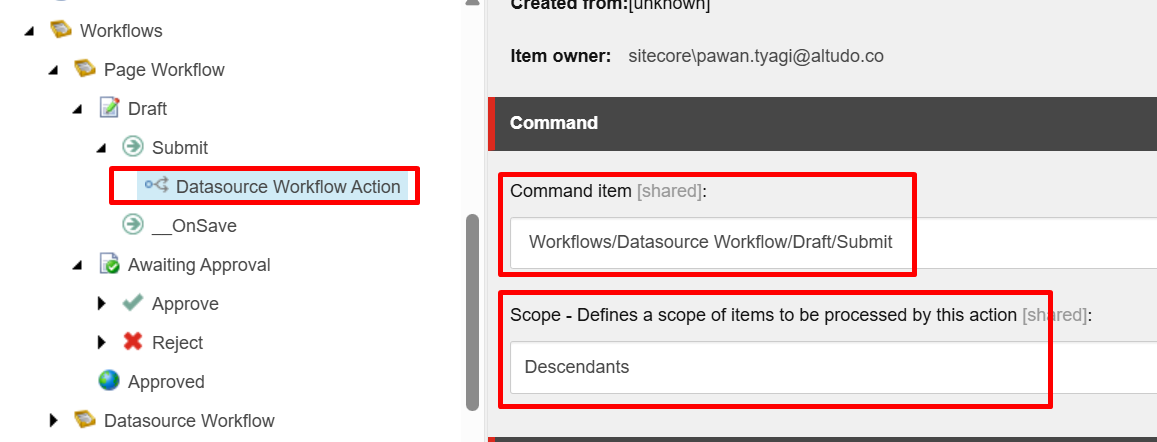
Command Item
-
This is the matching command in the Datasource Workflow
-
For example, if page submits with “Submit”, the datasource should use its own “Submit” command
-
Browse to it and link it
Minimize image
Edit image
Delete image
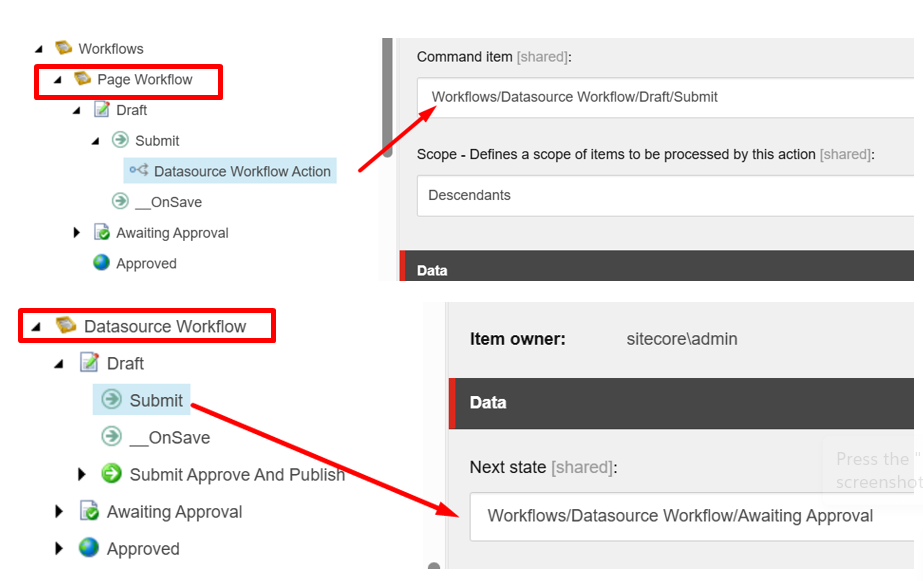
Scope
- Choose how far the action should apply:
Use Descendants for things like grouped navigation items or multi-card blocks.
Step 6: Repeat for Approve and Reject
So far, we only linked the Submit command.
Minimize image
Edit image
Delete image
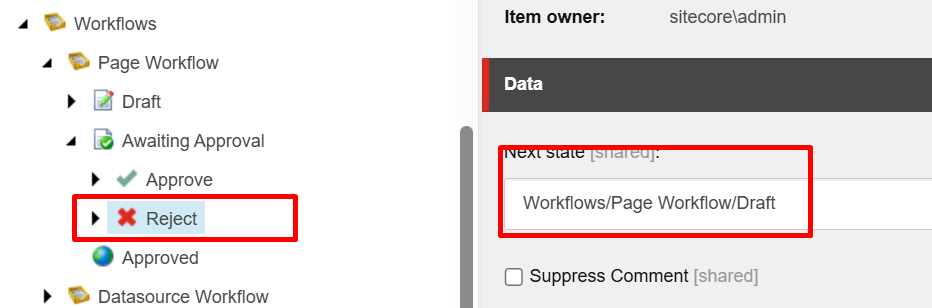
Now repeat the process for:
-
Approve (Page → Approve command on datasource)
-
Reject (Page → Reject command on datasource)
This keeps both types of content completely in sync.
Step 7: Assign Workflows to Templates
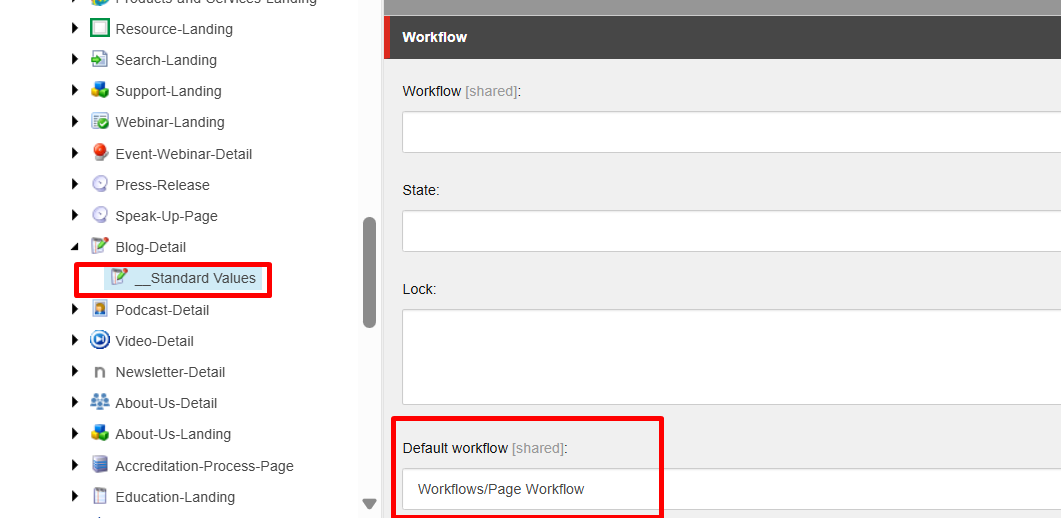
Assign Page Workflow to Page Templates
-
Open Content Editor
-
Go to your Page Template’s Standard Values
-
Turn on Standard Fields from the View tab
-
Under the Workflow section, set your new Page Workflow
Minimize image
Edit image
Delete image
Assign Datasource Workflow to Component Templates (SXA)
Minimize image
Edit image
Delete image
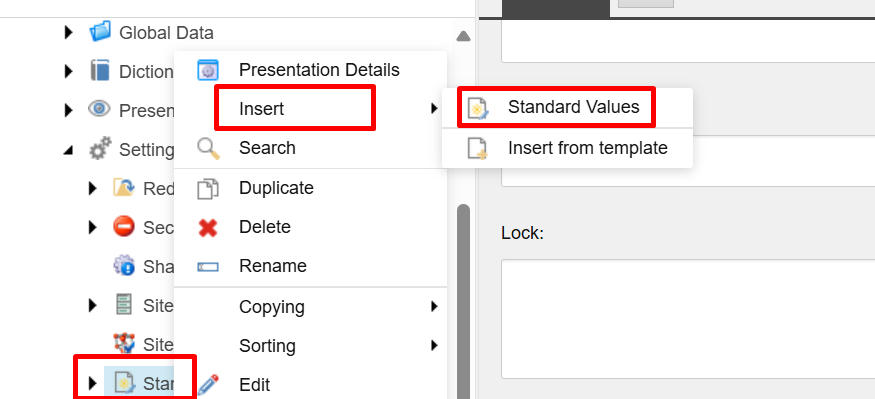
For SXA:
-
Navigate to:
/sitecore/content/[YourSite]/Settings/Standard Values -
Right-click → Insert → Standard Values
-
Click on the Datasource Templates tab
-
Select templates for your components and assign the Datasource Workflow
Minimize image
Edit image
Delete image
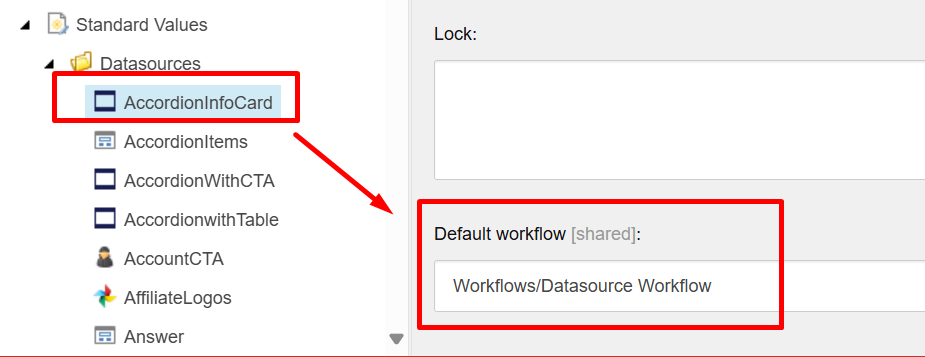
Note: Templates must inherit from this base to show up: /_PerSiteStandardValues Path: /sitecore/Templates/Foundation/Experience Accelerator/StandardValues/
For more details, check out the official Sitecore documentation:
🔗 configure-page-and-datasource-workflows
Let me know if you'd like any other tweaks! 😊
Leave a comment